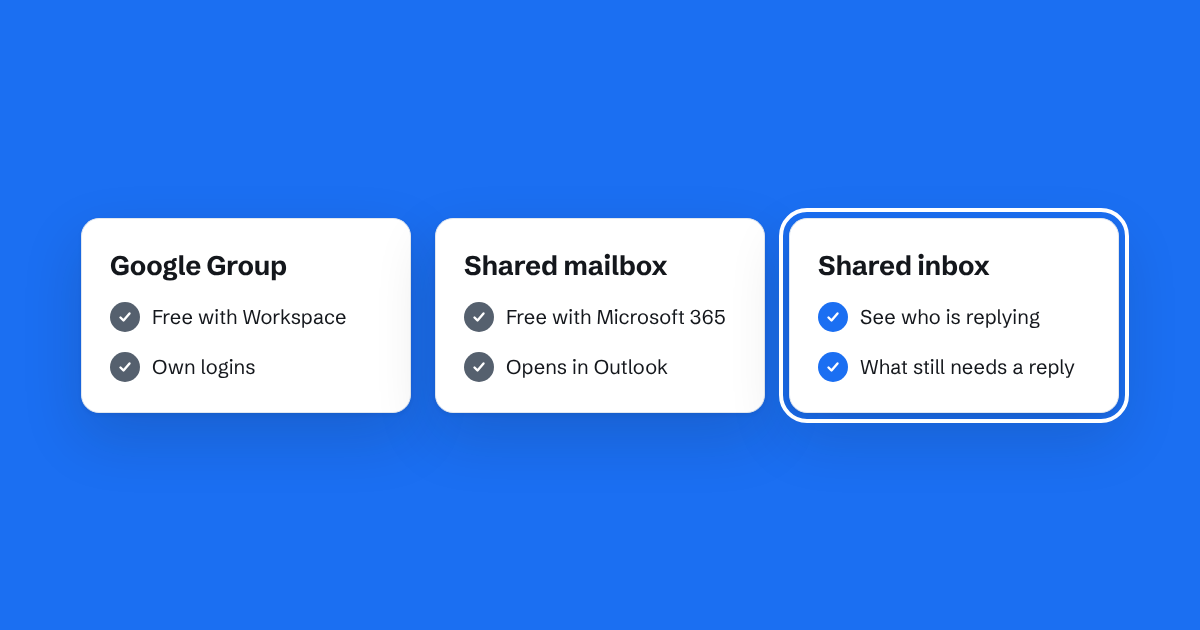
When a small team needs to share hello@ or info@, there are three common answers. Each works, and each suits a different kind of team. Here's an honest look at all three.
A Google Group or collaborative inbox
If you use Google Workspace, you can make your shared address a Google Group. Email sent to it is delivered to each member, or kept in the group's own inbox if you turn on the collaborative inbox features.
Good at: costing nothing extra, and being already set up for many Workspace users. Each person keeps their own login.
Less good at: showing what's happening. There's no live sign that a colleague is replying, so double replies are common. Replies often go out from the person's own address unless the group is set up carefully, and replies can loop back into the group (we explain the Google Groups reply loop in our help pages). Marking conversations as resolved exists, but it's easy to forget.
Best for: very small teams with low email volume who already live in Gmail.
A Microsoft 365 shared mailbox
In Microsoft 365, a shared mailbox is a mailbox nobody signs in to directly. Instead, people with permission open it alongside their own mailbox in Outlook.
Good at: being free with most Microsoft 365 plans, and fitting naturally into Outlook. Each person uses their own account.
Less good at: coordination. Outlook doesn't show who is answering what, and read or unread status is shared, so one person opening an email can make it look handled for everyone. It can also behave differently across Outlook on the web, desktop and phone.
Best for: teams already on Microsoft 365 who mostly need everyone to be able to see the mail.
A shared inbox tool
A shared inbox is a separate app built for teams answering email together. You forward your shared address to it, and the team reads and replies there with their own logins.
Good at: showing who is replying, keeping each person's read status separate, and showing which emails still need an answer. Replies go out from the shared address, so customers never see a personal one.
Less good at: being free. It's another app to pay for. Some shared inbox tools are also full helpdesks, priced per person, with more features than a small team needs.
Best for: teams of three to ten who answer customer email every day and have started tripping over each other.
How to choose
Ask three questions:
- Do people ever reply to the same email twice? If yes, you need something that shows who is replying. That rules out a plain group or shared mailbox.
- Do things get missed because someone assumed a colleague had answered? If yes, you need to see answered and unanswered at a glance, without relying on everyone marking things.
- Is the email the work, or alongside the work? If you're running a support team with targets and reports, look at a helpdesk. If email is one part of running the business, a simpler shared inbox will feel lighter.
We go into more detail, including where the free options are the better choice, in shared mailbox vs shared inbox and Bosun compared with Google Groups.
Where Bosun sits
Bosun is a shared inbox, deliberately small. It shows who is replying and what still needs an answer, and keeps everyone on their own login. It doesn't try to be a helpdesk. If a free Google Group or shared mailbox is working for your team, keep it. If it isn't, Bosun is built for the gap.