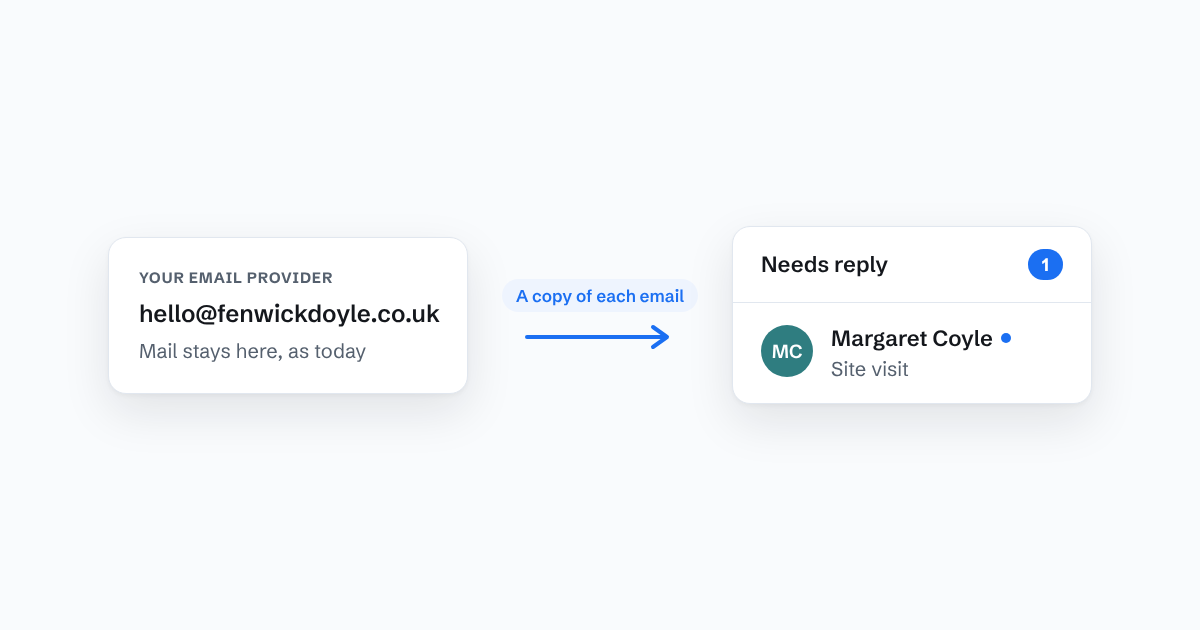
The biggest worry teams have about trying a shared inbox is the move. Will we lose emails? Do we have to change our address? What happens to our existing mailbox?
With forwarding, none of that changes. Here's how it works, and what to watch for.
Forwarding, not moving
Your email stays with your current provider, whether that's Google Workspace, Microsoft 365 or your web host. You add one rule that sends a copy of each incoming email to the shared inbox. The original still arrives in the mailbox you have today.
That means:
- Your address doesn't change. Customers keep writing to the same hello@.
- Nothing is deleted or moved. If you stop using the shared inbox, delete the rule and carry on as before.
- Your other email is untouched. Only the address you forward is shared. Personal mailboxes stay personal.
Replies work the other way round. Once you've verified your domain, replies sent from the shared inbox go out from your shared address, so customers see hello@, not a stranger's address or a personal one.
Setting it up
The exact steps depend on your provider. In outline:
- Google Workspace: in the mailbox's Gmail settings, add a forwarding address. Google sends a confirmation code to that address before forwarding starts. If your address is a Google Group, you add the forwarding address as a member instead.
- Microsoft 365: add a forwarding address to the mailbox in the Microsoft 365 admin centre or in Outlook's settings.
- cPanel and most web hosts: add a forwarder for the address in your hosting control panel.
We have step-by-step guides with screenshots for Google Workspace, Microsoft 365 and cPanel, and every other set-up.
Three snags worth knowing
1. Microsoft 365 blocks outside forwarding by default. If forwarding seems set up but nothing arrives, and you get a bounce mentioning 550 5.7.520, Microsoft's outbound spam policy is blocking it. An admin needs to allow automatic forwarding. Our help page on the 550 5.7.520 error walks through the fix.
2. Groups may refuse outside mail. If your shared address is a Google Group or a Microsoft 365 distribution group, it may be set to accept mail only from people inside your company. Customers' emails then bounce before forwarding ever happens. Check the group allows posts from anyone.
3. Confirmation emails. Some providers send a "confirm this forwarding address" email to the address you're forwarding to. In a shared inbox it's easy to miss among real mail. A good tool catches it and shows you the code during setup.
How long it takes
For most teams, setting up the rule takes a few minutes. The part that takes longer is verifying your domain for sending, because it involves adding a few DNS records and waiting for them to be picked up. You can read and organise incoming mail while that happens.
Trying it safely
Because forwarding only copies mail, it's a low-risk way to try a new tool. Run it alongside your current mailbox for a week or two. If it isn't right, remove the rule and nothing has changed.
That's how Bosun works: one forwarding rule, your address stays the same, and your team signs in as themselves. If your provider is giving you trouble, the setup screen tells you whether mail has arrived yet, and our setup guides cover the common snags.